Prerequisites for TH installation
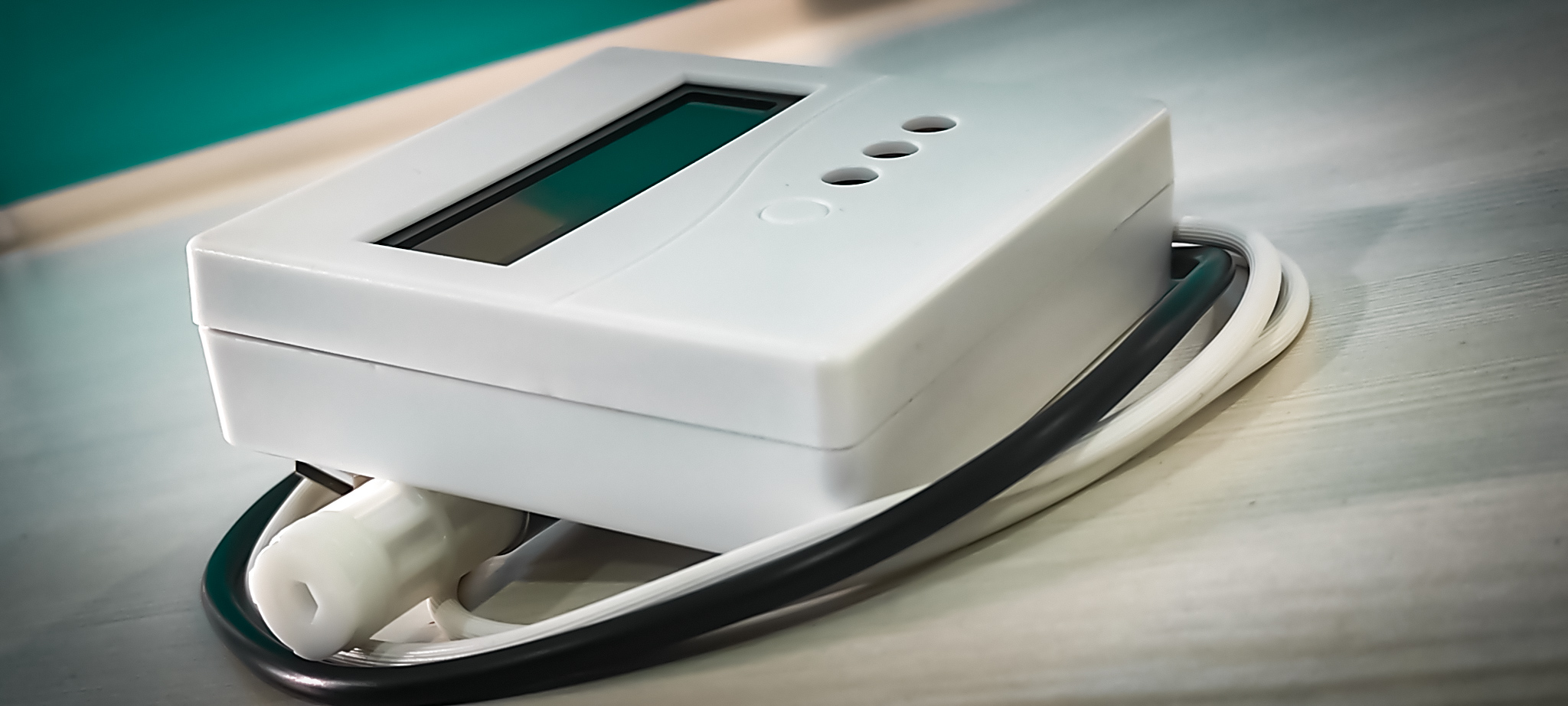
Inorder to run the TH Device we need to install MSSQL Database which is accessible to all plants
Step1 :
Device Driver Installation
To access or use the device, download the drivers with the Link
- CP210x Universal Windows Driver --v11.0.0 (for windows 10)
The above driver is supported for windows version 10
- CP210x Windows Drivers --v6.7.6 (for windows 7)
The above driver is supported for windows version 10
Step2 :
Driver Setup
- Download the above required driver’s zip files
- Extract the files and update drivers in Device manager ( Browse with the extract files location)
Step3 :
Software Setup & Configuration
Software setup
- a. Download the Software from the Support team (support@humetdevices.com)
- Unzip & Run the setup. Note the setup destination folder
- Create the folder in the local system in C: Drive with name “THcapture”
- Give Read & Write permissions to THcapture folder for the application to create text file
Configuration
- Open setup destination folder
- Open app.config file. Below will be some constants to be changed.
- Update Plant name. Change only the below string PLANTNAMEVALUE with the required Plant name where device is located, "add key="PlantName" value="PLANTNAMEVALUE"
-
Add Temp-Humidity Device Id of connected system. Device Id is given on the Device Box. Change the below string DEVICEIDVALUE with Device Id of the box,
"add key="DeviceID" value="DEVICEIDVALUE"
Device connection
- Connect the Device using the provided USB cable to the system where the above software is installed
- Keep the sensor away from the system to reduce system heat.
Screenshots
Step4 :Scheduler Setup
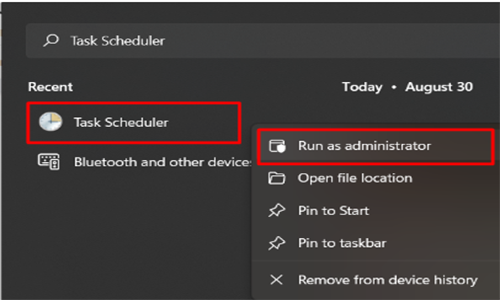
- In Windows OS, open TASK SCHEDULER - run as Administrator
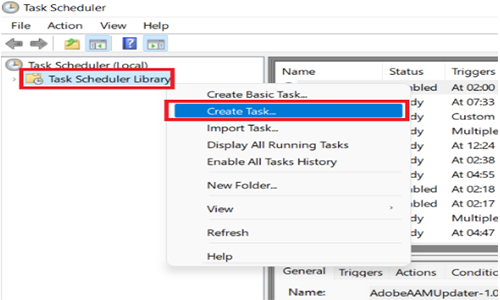
- Right click on Task Scheduler Library- Create task
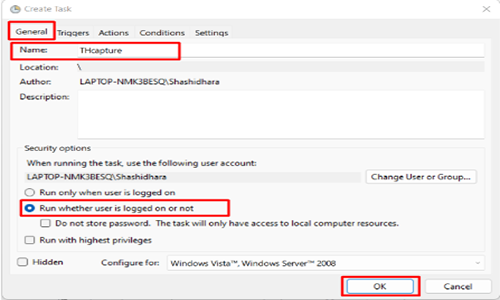
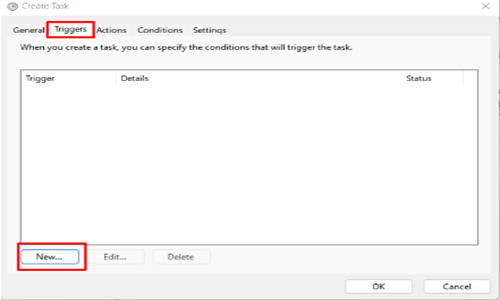
- The popup window shows Tabs like
General, Triggers, Actions, Conditions & Settings. - Click on General to create the actual task.
- Write Task name
- Select Run whether user is logged on or not Radio button
- Click on OK.
Screenshots
Creating Task
- Click on New, In Triggers Tab
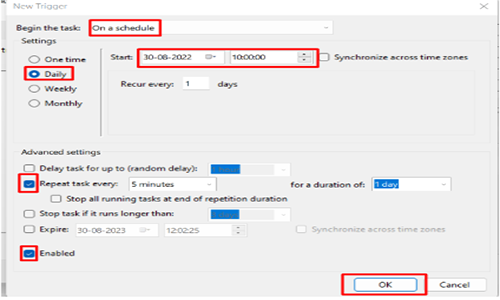
- Select On a Schedule. This can be scheduled for One day, Daily, Weekly & Monthly, as per our requirement.
- Enter Start Date & Time
- For Repeat task every select 5 minutes. It will run every 5 minutes daily.
- Click on Enabled checkbox & Click on OK
Screenshots
Action Tab
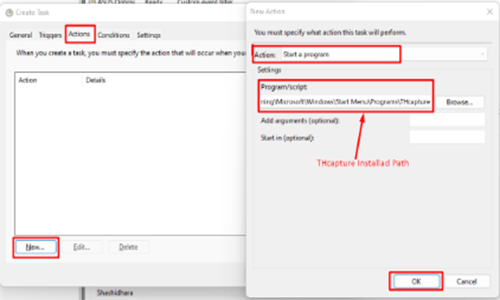
- Click on NEW, Create a Action,
- Select a “START A PROGRAM”, select the installed THCapture path
-
Click on OK
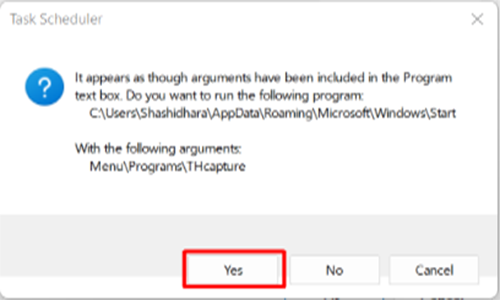
For
Ex: C:\Users\Shashidhara\AppData\Roaming\Microsoft\Windows\Start Menu\Programs\THcapture - Below popup shows up, click on Yes
Screenshots
User creation
- Steps
- CONDITIONS & SETTING tabs: nothing to be done here. Keep values as it is.
- In the Create task popup, Click on OK.
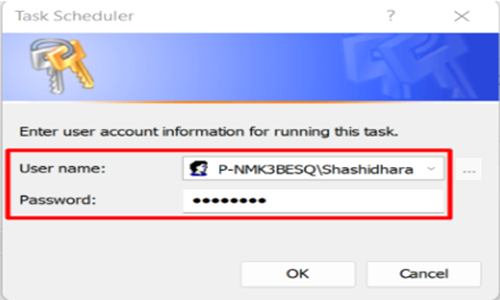
- It will prompt admin’s Username & Password.
- Enter & click on “OK”